

A keyboard that does not respond immediately can be frustrating, particularly when the delay appears during gaming, fast typing, or other activities that require quick input. Sometimes the problem is caused by the keyboard itself, but there are also several software and system-related factors that can affect how quickly a computer registers a key press.
Connection problems, background applications, outdated drivers, USB issues, keyboard settings, and system performance can all contribute to an inconsistent experience. Before replacing a keyboard, it is worth checking these areas one by one.
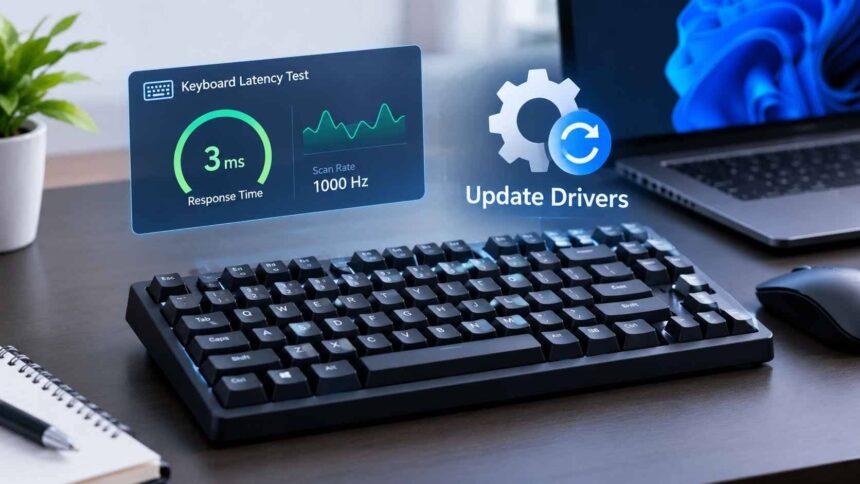
One useful starting point is to measure the keyboard’s response and then investigate possible causes. A simple keyboard latency test can help determine whether the keyboard is registering input quickly and consistently. If the results or everyday use suggest a problem, checking and updating the relevant drivers is another practical troubleshooting step.
What Is Keyboard Latency?
Keyboard latency is the delay between pressing a key and the computer registering that input. It is generally measured in milliseconds. Lower latency means the input is registered more quickly, although the number shown by a test should always be considered in context.
For normal activities such as writing emails, browsing websites, or working with documents, small differences in latency may not be noticeable. Gaming can be more sensitive to input delay because players often need immediate responses to their commands.
A keyboard’s overall response can depend on several parts of the input process. The physical keyboard, connection type, polling behavior, operating system, drivers, and software running on the computer can all have an influence.
How to Check Keyboard Latency
If your keyboard feels slower than usual, measuring its response is a good first step. An online keyboard testing tool can record key presses and provide an indication of how the keyboard is responding.
A keyboard latency test can be particularly useful because it gives you a baseline before you start changing settings or updating software. After making a change, you can perform the test again and compare the results.
When testing, press several different keys rather than relying on just one. Repeat the process a few times to get a more consistent idea of performance.
It is also important to remember that browser-based tests do not necessarily measure every stage of the physical signal path. The result can be affected by the browser, operating system, and other software. Therefore, the test should be treated as a useful comparison tool rather than an absolute measurement of every aspect of keyboard hardware.
Common Reasons for Keyboard Input Lag
There is rarely one universal cause of keyboard delay. Several factors can produce similar symptoms.
Wireless Connection Problems
Wireless keyboards offer convenience, but their response can sometimes be affected by interference, battery condition, signal strength, or the type of wireless connection being used.
If you are experiencing noticeable lag with a wireless keyboard, try connecting it through a wired connection if the keyboard supports one. If the delay disappears, the wireless connection may be worth investigating further.
Replacing weak batteries can also be a simple solution for keyboards that use replaceable batteries.
Too Many Background Processes
A computer under heavy workload may feel less responsive overall. Applications running in the background can consume CPU, memory, or other system resources.
Open Task Manager in Windows and check whether a particular application is using an unusually high amount of system resources. Closing programs that are not needed can sometimes improve general responsiveness.
This is especially worth checking if the keyboard delay appears only when running demanding games or applications.
Outdated or Problematic Drivers
Drivers allow Windows to communicate with hardware components. When a driver is outdated, corrupted, or incompatible, hardware may not behave as expected.
Keyboard-related issues can sometimes involve more than the keyboard driver itself. USB controllers and chipset components also play a role in communication between peripherals and the computer.
If you suspect a driver problem, you can update drivers through appropriate Windows tools or trusted hardware-manufacturer resources. Driver management software can also help identify drivers that may require attention.
However, a driver update should not automatically be assumed to be the solution. If the actual problem is a damaged cable, wireless interference, excessive system load, or faulty hardware, changing the driver may not make a noticeable difference.
Why Keeping Drivers Updated Matters
Drivers sit between the operating system and many hardware components. They help Windows recognize devices and communicate with them correctly.
Manufacturers periodically release new drivers to address bugs, improve compatibility, support newer hardware, or resolve specific problems. This is why checking drivers can be useful when a device suddenly starts behaving differently.
If your keyboard was working normally and began experiencing problems after a Windows update, software installation, or hardware change, checking the relevant drivers may be worthwhile.
You do not necessarily need to install every driver update immediately, though. It is better to focus on updates that are relevant to your hardware or address a problem you are actually experiencing.
How to Update Drivers Safely
Windows provides several ways to manage device drivers. Device Manager can be used to inspect hardware and check available driver options. Hardware manufacturers may also provide driver downloads through their official support pages.
Another option is dedicated driver-management software. For example, IObit’s Driver Booster is designed to scan a Windows PC for drivers that may be outdated, missing, or problematic. This can be useful for users who want to check multiple hardware components without manually searching for each driver.
You can learn more about the general process through the provided update drivers resource.
Regardless of which method you use, it is important to obtain drivers from reliable sources. Installing an incorrect driver can create additional compatibility or stability problems.
Before making significant driver changes, creating a restore point or ensuring that important files are backed up is also a sensible precaution.
Check USB Ports and Connections
A simple connection problem can sometimes look like a software problem.
If your keyboard is connected through USB, try another USB port. If possible, connect it directly to the computer instead of using an external hub or adapter.
A damaged cable can also cause intermittent behavior. If the keyboard disconnects, misses key presses, or behaves inconsistently rather than simply responding slowly, inspect the cable and connector.
For laptops, testing another keyboard can help determine whether the issue is limited to the built-in keyboard or affects external devices as well.
Consider Keyboard Polling Rate
Some keyboards, particularly gaming models, allow users to adjust the polling or report rate. This setting determines how frequently the device communicates its current state to the computer.
A higher polling rate can reduce the time between device reports, but increasing the setting is not always necessary for every user. The practical benefit depends on the keyboard, computer, software, and type of work being performed.
If your keyboard supports different polling-rate options, you can test them individually and see whether the change produces a noticeable improvement.
Avoid changing multiple performance settings at the same time. Otherwise, it becomes difficult to determine which adjustment made a difference.
Don’t Ignore Keyboard Firmware
Drivers and firmware are different things. Drivers are software used by the operating system to communicate with hardware, while firmware is software stored on the hardware itself.
Some keyboard manufacturers release firmware updates to improve compatibility, fix bugs, or modify how the device operates.
If other troubleshooting steps do not solve the problem, check the keyboard manufacturer’s official support resources for firmware information. Follow the manufacturer’s instructions carefully because interrupting a firmware update can potentially cause problems with the device.
Test Before and After Making Changes
One of the easiest ways to troubleshoot keyboard latency is to measure performance before changing anything.
Start by running a keyboard latency test and recording the result. Then make one change, such as switching USB ports or updating a relevant driver. Restart the computer if necessary and test the keyboard again.
This approach gives you a clearer comparison.
For example:
- Test the keyboard in its original configuration.
- Record the results.
- Check the physical connection.
- Review system resource usage.
- Check for relevant driver updates.
- Restart the computer after necessary changes.
- Test the keyboard again.
- Compare the new results with the original baseline.
If there is no meaningful improvement, move to the next possible cause rather than repeatedly changing the same setting.
When Should You Consider Replacing the Keyboard?
Not every latency problem can be fixed through software.
If the keyboard has physical damage, repeatedly misses inputs, has damaged switches, or continues to perform poorly on different computers, the hardware itself may be responsible.
Testing the keyboard on another computer can be particularly helpful. If the same problem occurs on multiple systems, the keyboard is more likely to be the source of the issue. If it works normally elsewhere, the original computer’s software, drivers, settings, or connection may deserve closer attention.
Final Thoughts
Keyboard input lag can be caused by many different factors, so troubleshooting should start with simple checks rather than immediately replacing hardware.
A keyboard latency test can provide a useful baseline for understanding how the device is responding. From there, check the connection, background processes, USB ports, polling settings, firmware, and drivers.
If outdated or problematic drivers appear to be contributing to the issue, you can update drivers using Windows, manufacturer-provided resources, or suitable driver-management software. The important thing is to use trustworthy sources and make changes carefully.
Most importantly, test one adjustment at a time. Measuring the keyboard before and after each change makes it easier to identify the actual cause of the delay and avoid unnecessary changes to a system that is otherwise working correctly.
FAQs
- What is keyboard latency?
Keyboard latency is the delay between pressing a key and the computer registering the input. - How can I test keyboard latency?
You can use an online keyboard latency test to check your keyboard’s response time. - Can outdated drivers cause keyboard lag?
Yes. Outdated or problematic drivers can sometimes affect communication between the keyboard and Windows. - How often should I update drivers?
Update drivers when there is a compatibility issue, hardware problem, or a relevant update from a trusted source. - Can a USB connection reduce keyboard lag?
A wired USB connection can provide a stable connection and may help if wireless interference is causing input delays.